Monday, March 31, 2014

How To support Bangla in Samsang Device

Today we are showing on to you, How to support bangla any android phones. Its Too easy to support bangla in your device.
First method : Download This File

Now installed this software in your phone. After complete installation, you go to setting > Display > Fonts.
Now select Bangla Font and Restart your phone. And see Effects.


Thank You :)
Read More

Sunday, March 2, 2014

Airdrroid The Best Android Manager For PC

Now we are share to you a best android manager For your Android. Its really a good apps.
But Its just need a wifi. Connect your mobile wifi via your computer wifi router or hotspot.
and open airdroid and u see a ip address.
The ip address put your computer browser search bar and search it..

Now sawing on your mobile and a notification like my 1st screen shot picture.
Accept connection...
After Accept u see it your computer browser..


 Download This File Here
 Install Your Mobile and Enjoy This Apps :)


Read More

Cam Scanner (Android)

Today we are share to you a best Document Scanner For Android. We are all time used computer scanner when our need to a paper scan. But now we are scan our paper or documents via mobile :D Its a great apps i used it. So if u want this u can download this File and scan your any document and see magic........
Download This File


Enjoy :)
Read More

Saturday, March 1, 2014

How To Change Log in screen (windows 7)

Now we are share to you a different post......!
How to change log in screen change in you windows 7 operating system...?
Solve it now.. Its too easy.. So if u want to change your log in screen then lets start..
At First Download This File

Now Extract it and open folder.
Click InstallTakeOwnership and install this file..
Then Press Yes..
Now Open Win7LogBackgroundChanger...

After open you see that.. Its my computer log in screen..
You choose any image to to your hard drive and apply...

 I choose photo from my hard drive and apply...

After apply press= Ctrl+Alt+Del
And see magic...
If you see any problem plz comment...


Read More

Friday, February 28, 2014

Nokia E63 Custom Firmware (symbian)

Today we are share to you new Firmware For Nokia E63. Its look like very nice and imagine..
If you want to custom firmware you use it...
This Firmware Changed items:

1. Windows 7 Ultimate Startup and Power off.
2. Use Heavy Effect.
3. Permanently Hacked system.
4. Custom Font Used.
5. Visual theme with animated theme.
6. No bug fixed and given new updated.

Some Screenshot:


Download This File Here:
Custom Firmware 
Full Efects
Bug Fixed Updated

Download file and flash it..
And see effects :)
If u have showing any problem.. you can contact to me..
Thank you..
Zip Password: k0pl4xz


Read More

Easy Touch Iphone Style (Android)

Now We are share to you imagine a software. Easy Touch Iphon style For android.
★ What is Easy Touch?
Easy Touch Not a Widget!
Easy Touch is a button which looks like Assistive Touch on iPhone, and it's All Free!
It floats on your phone screen(floats on others app), you can move it to any where.
★ What Easy Touch can do?
Easy Touch provides a very convenient way to:
★ Quick settings(Change your phone settings like turn on Wifi, change screen brightness and so on).
★ Open your favour app.
★ Go to Home Screen.
★ Back button(need Root support).
★ Menu button(need Root support).
★ Lock Screen(sorry for some problems on Galaxy s3 and some 4.0.+ Android OS).
★ App list.
★ Open recent task(double press).
★ Task manager(Kill task,need Root support)
★ Memory optimize(Ram optimize)
★ Time display
★ Clean cache
Download This File Here

Read More

Thursday, February 27, 2014

Now I am share to you How To Turn Off USB to your computer without any software.
We can disable USB in your computer without any software..
So lets start...
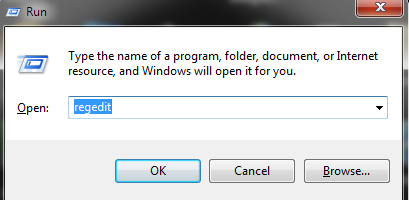
At first Go to Windows Run menu..

Then write regedit and click ok..


Now Open Register Editor:

Now you see many red signs on my screen shot...
First Go to HKEY_LOCAL_MACHINE > SYSTEM > currentControlSet > Services...


 After click services then find USBSTOR..
Now You see many option to Right hand window. Click start and modifying that..
You see value data 3 its makes to 4..

Now press ok and close all window..
Restart your computer and see magic :) Insert any pendrive or USB device.
Device are not worked..
Now you want to USB device work same option value data 4 to makes 3 and ok..
and restart computer..
Thank You..


Read More

Wednesday, February 26, 2014

Hidden Eye (Android)

Today we are share to you a great apps for android. This apps name is Hidden Eye.
Its just imagine apps. This apps worked when u lock your phone in home and if anyone try to unlock your phone.. u can understand it. This apps capture whose person picture who try to unlock your phone. when u unlock your phone u see whose person picture and u understand who try to unlock your phone :)
 Download This File

Now install this your phone and open it...


Now click ON and Mark Alert me on Notification Bar.
Click Active on Device Administrator...
Now Complete this..
Now you can try to wrong code to unlock your phone..
and see magic ;)


Read More

Wifi Mouse for Computer (Android)

Now we are share to you a MEGA POST!!! This apps working just Android User. If you used this apps u can Control virtual mouse for your computer. So its a great apps.
At first your need to a Wifi Router or wifi device.
Now Download Mouse Server For your computer.
Download This File Here

Now Download Wifi mouse for your Android Phone.
Download This File Here

Now Download mouse server and install file..
Now you can see a Ip address.. 192.168.0.** this type.

Install apk in your mobile and open it.
Now type ip and click connect and see the magic ;)

Read More

Tuesday, February 25, 2014

How to change windows7 Font & color

Today we are share to you a great post!!! Now we are share to you how to change windows 7 font and color :D
So lets start and following our rules...

At first go to your computer personalize..
Then click windows color >>
Now select any color to your own choice..
Now click Advanced appearance settings...


 Now click Items >

Click icon and select font >>

Select plantagenet cherokee ( chose your own )
Now click apply and press ok......

Now change Font color ;)
Click Items and press window..

 chose your color.. Apply ok..

 Now go to my computer and see effect ;)


Read More

5 GB Cloud Storage For Android

Today we are share to you 5gb cloud Storage For android....

Create account:


Description:
Your Personal Cloud
Ubuntu One gives you 5GB of free storage for all your files, photos and music, watch as they magically appear on all your devices. Ubuntu One works on Windows, iOS, Android, Ubuntu and via the web.
Your Photos
Auto upload - any photo you take will appear online and on all your devices, the instant you take it. The U1 Files app also automatically uploads images from other photo apps you use, so if you’re into Instagram, it will automatically upload all those cool images to your Ubuntu One personal cloud, making them available on all your devices.
Everyone’s Delight
Share easily with family, friends and colleagues. Link to Facebook, Twitter, Google and other networks.
* Auto-uploads photos to your Ubuntu One personal cloud
* Auto-uploads images from other photo apps
* Easy links for sharing to Facebook, Twitter, Google and other networks
* Browse, select and download files and folders
* Upload and share files from your phone
Special Features:
* Easy to use
* 5 GB Storage
* Share link
* Copy link to clipboard
* One Click Download
So don't miss it. Download Fast and Enjoy this apps :)
Download this File Here 
Read More

Saturday, February 22, 2014

How to Flash any nokia mobile!!! Via Phoenix

Today we are share to you most important Tips for you!! Today we are share to you how to flash any nokia phone via phoenix Service Software..
Phoenix Service Software is a freeware tool for flashing several Nokia brands using just USB data cable of the phone. You don’t need to take your Nokia mobile phone to any service shop for re-installing its firmware once after installing the tool and after learning how to use Phoenix Service Software for flashing your Nokia mobile phone. I have written a step-by-step tutorial on how to flash Nokia phones using a USB data cable...

At First Download This File Here

If your nokia phone need to flash..you have need to Firmware for your nokia mobile. Different mobile has a different Firmware by model no. So your need to find firmware for your mobile via Model no. First remove battery to your mobile. Now you showing on many codes to your mobile Imei, Rm no, Products no. Find Your Rm no and products no Different mobile have Different Rm and products. My mobile Rm-530 Products05xxxx its my mobile Rm and products no. Your mobile have different.
So now your need to find firmware via products code.
Your Need to NaviFirm+ and install this software in your pc.
NaviFirm Find Firmware any official nokia mobile via products code..
Download This File Here
Now Extract this file to your computer and open it..


Now search your products codes in search box and you find firmware for your mobile..
You find your firmware Right now :) Now click download and start downloading...

After complete downloading you saw your file..


You complete 1step.....
Now we are get 2nd step.......
Open your Phoenix service software.. At first your need to be a small work. Your Firmware File full copy to your phoenix install file location. I copy to file my installed location.

Now open phoenix service software.....

Now join USB cable to your phone and your computer... then

Now you select RM-530 (my mobile RM)..Now scan products for your mobile..

After scanning..you showing on...

Step 2 now complete :) now flashing step...

Click Firmware Update after you see new window..

Now click Refurbish...

After Click Refurbish The phone flashing is started....

Warning: Don't remove USB Cable to your phone.. when flashing started, if disconnected USB cable! your set get to Dead. So check everything carefully.

The blue sign when full complete your set are then fully flash :) and Reboot your Phone :)
Notes: If your mobile get to Dead then You Click Dead Mode then Started Flashing..
 
Then you saw a new window...

Follow this instruction and get to flashing your phone... :)

If you showing any problem you can contact to me :)


Read More